Capture a visit
Record whether you connected, what happened, and what should happen next.
Capture the visit while the details are fresh. The saved connection answer, outcomes, reason, and notes update the stop, the lead's visit summary, and field-performance reports.
Record the result
Select the visited stop
Open Today, then select the stop from the map or list. The selected-stop card shows the lead and visit actions.
Open Capture visit
Select Capture visit. On a phone or tablet, the form opens from the bottom; on a computer, it opens at the side.
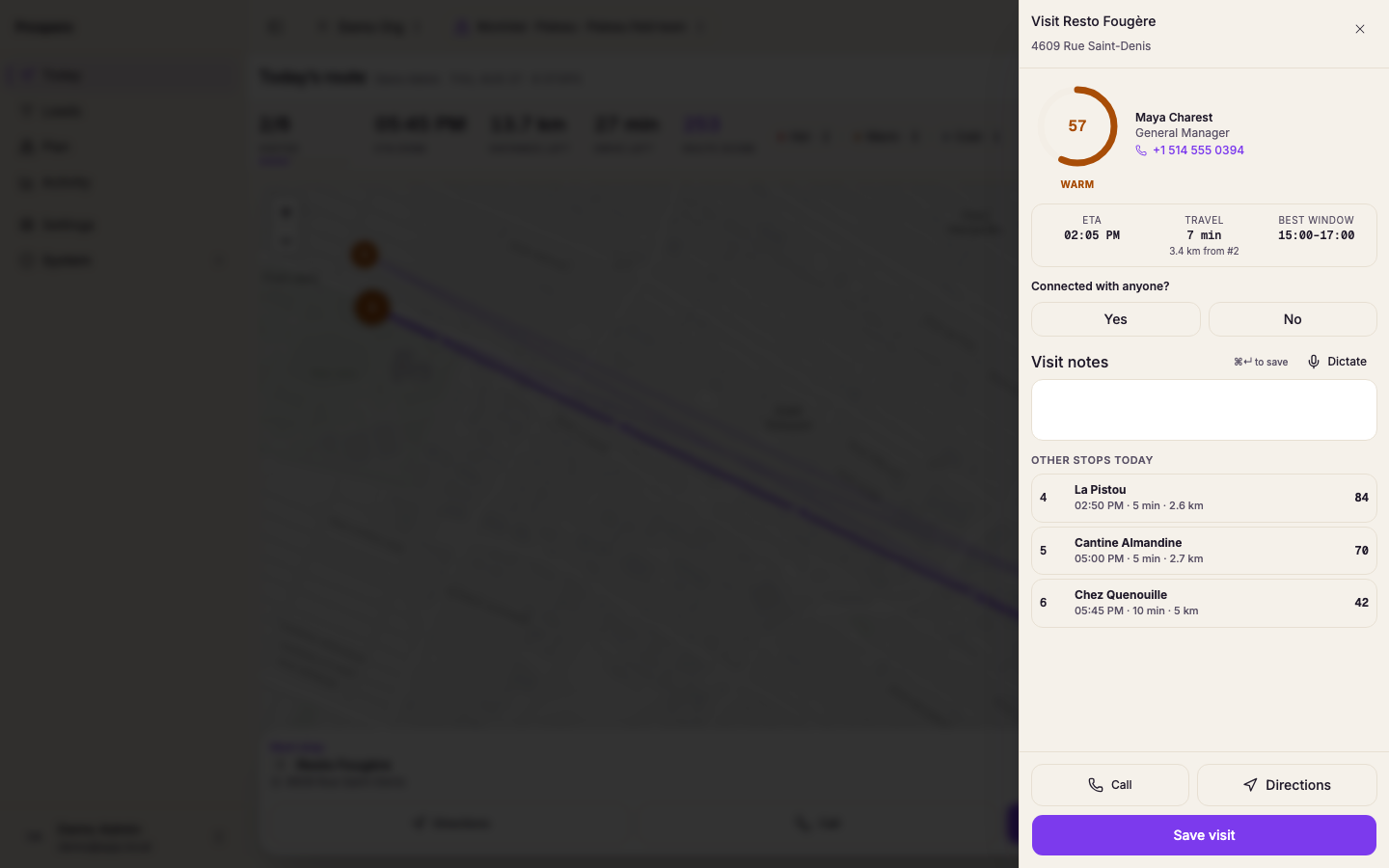
Record whether you connected
Under Connected with anyone?, choose Yes or No. Prospero uses the answer to show the correct result fields.
Choose the connected outcomes
For a connected visit, select every result that applies, such as Met decision maker, Lead qualified, Demo booked, or Follow-up scheduled.
Choose the no-contact reason
For a visit without a connection, choose a reason under Why not?. Add a note when the listed reasons do not explain what happened.
Add visit notes
Enter the details under Visit notes. Select Dictate when the browser supports voice input, then review the text before saving.
Save the visit
Select Save visit. Prospero marks the stop as visited and selects the next later unvisited stop when one remains.
Prospero requires a connection answer. A connected visit also needs an outcome or note. A no-contact visit needs a reason or note.
The final visit closes the capture form and shows the completed-day state. Use Review completed stops if a saved result needs to be checked or corrected.