Build a route
Choose when, who, which leads, and the workday limits for a new route.
Build a route for one salesperson and one day at a time. Prospero uses the selected lead source, tiers, workday limits, travel profile, start point, and area to prepare a draft.
Before you start
Select the correct market in the top bar. The market needs scored leads and at least one eligible salesperson.
Choose the route inputs
Open the route builder
Open Plan and select Build. Wait for the route-planning data to finish loading.
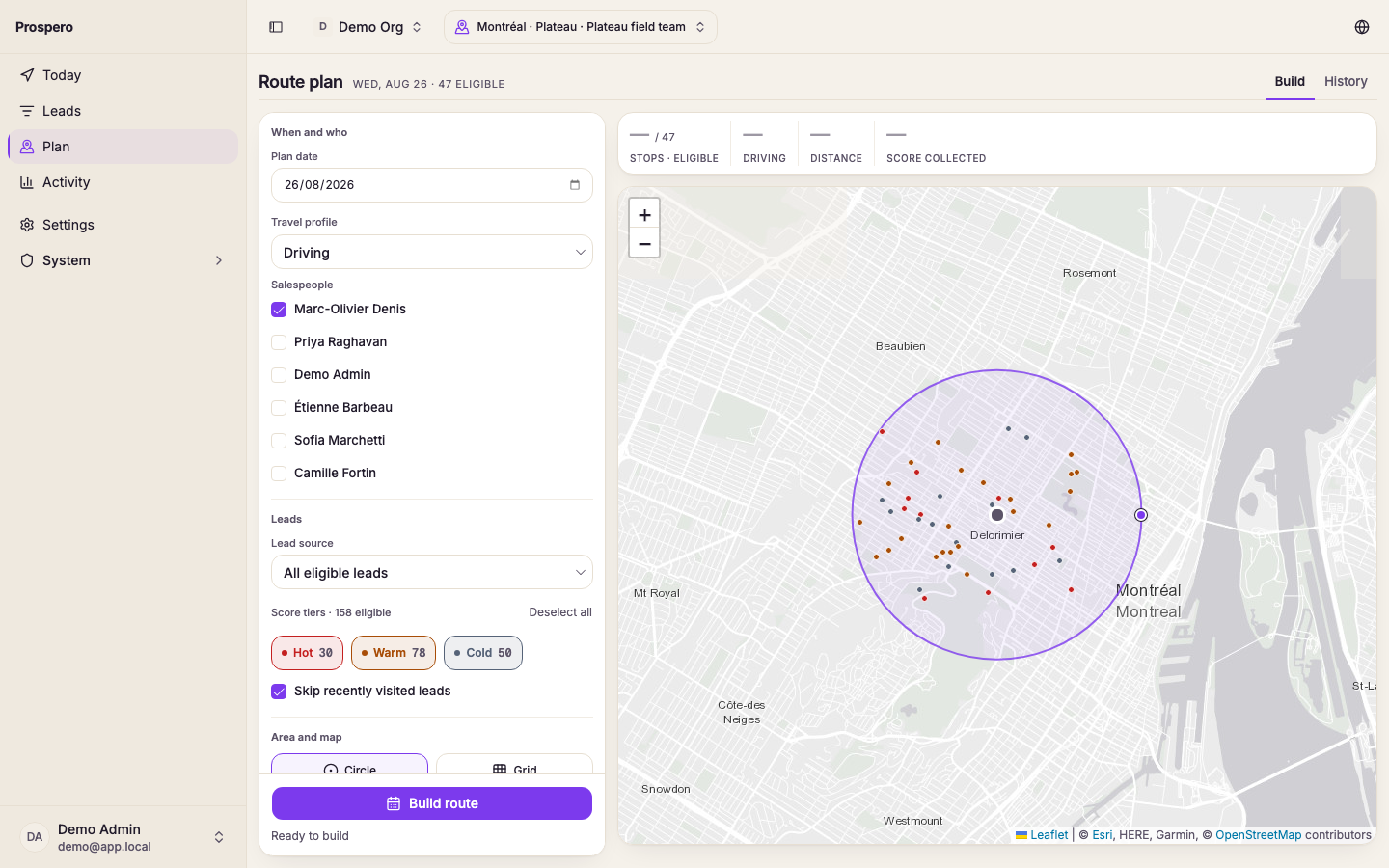
Choose the date and salesperson
Set Plan date, then choose the Salesperson who will follow the route. The list includes organization members who are eligible for the selected market.
Choose the lead source
Under Lead source, choose All eligible leads or a saved view. A saved view limits the candidate list to that view.
Choose the eligible tiers
Select at least one option under Eligible tiers. Prospero uses the tier setup of each industry in the market.
Set the stop limit
Enter Maximum stops, or choose No limit. The limit controls how many eligible leads the draft may include.
Review the workday settings
Check Workday starts, Workday ends, lunch, visit duration, travel profile, and walk time. These values affect whether a stop can fit in the day.
Choose the route area
Set the start point and choose a circle, grid cell, neighborhood, or drawn area under Area and map.
Build the route
Select Build route. The status changes to Queuing route, then Optimizing route while Prospero prepares the draft.
Keep the page open until Draft ready for review appears. Then use Review and approve a route before the field day begins.
If the build button stays unavailable, read the message below it. Common causes are a missing salesperson, no eligible tier, no candidate leads, or a grid, neighborhood, or drawn area that has not been selected.