Monitor and recover pipeline runs
Inspect run steps and logs, then cancel, resume, or retry safely.
Run detail shows what Prospero processed, which work failed, and whether recovery can continue from the existing run. Check it before starting another pipeline.
Inspect a run
Open a recent run
Open Activity, select Pipeline, then choose a run under Recent runs. The newest runs appear first.
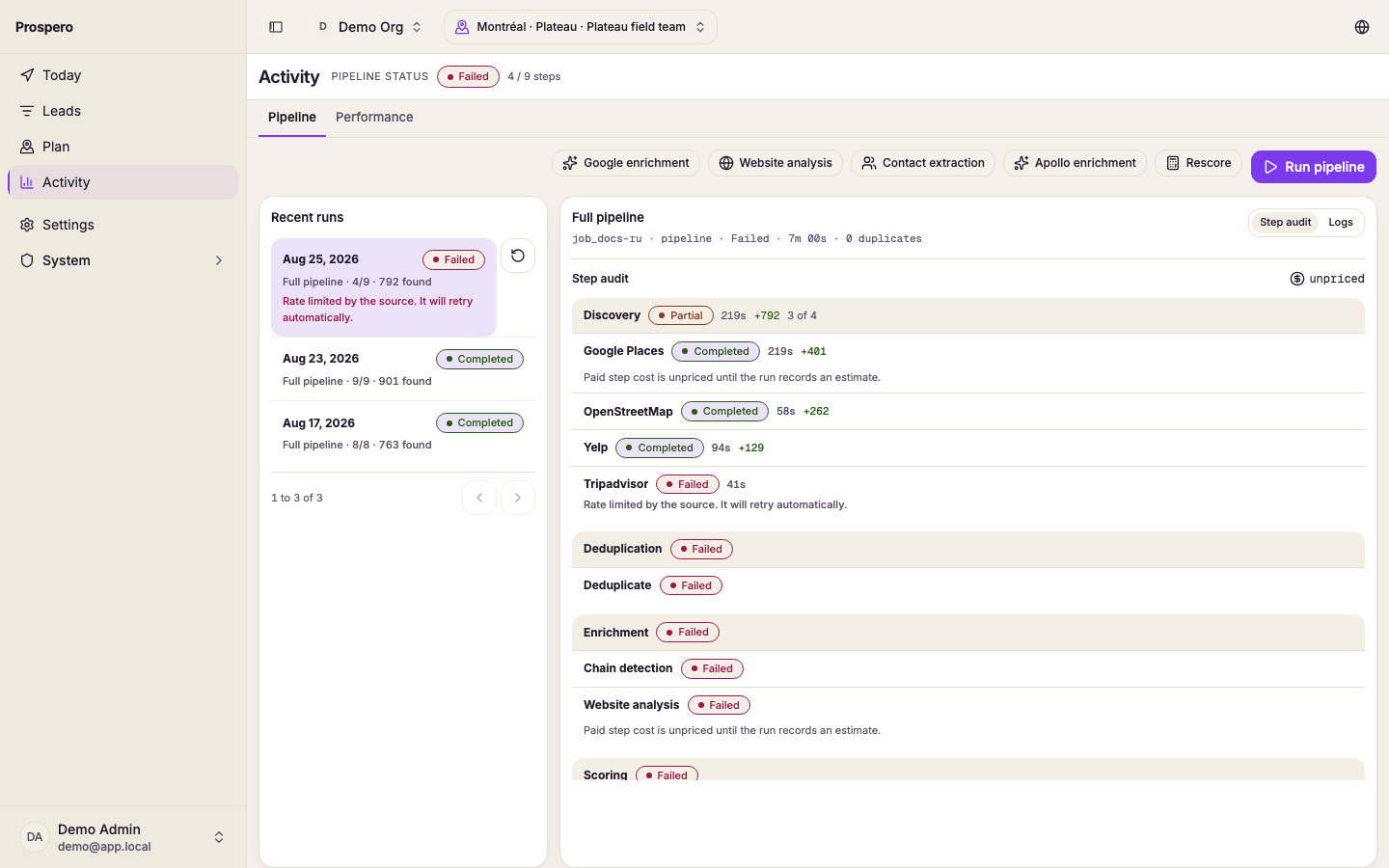
Review the pipeline status
Check Pipeline status and each layer's progress. A partial run completed some work but still has failed or unfinished steps.
Inspect the step audit
The run opens on its Timeline: each step in order, with how long after the start it began and its own log lines underneath. Select a step to review processed, succeeded, failed, skipped, calls, and credits. A failed run opens on its failed step, with the reason it stopped. A cost appears once the run records an estimate. A run that finished with at least one failed step reads Completed with errors, and a step that never reported an ending shows as Skipped.
Filter the logs
Select Stream to read every line in order, then choose Errors, Warnings, or Information. Prospero keeps the newest matching entries visible and tells you when older entries are hidden.
Recover the run
Cancel active work
Select Cancel run in the header to stop the live pipeline, or open any queued or running run and select Cancel in its details. Prospero asks first. Select Cancel run again to confirm, or Keep running to leave it. The run stops at its next safe point and changes to Cancelled, which is separate from a failure. Anything it already saved stays.
Fix the reported problem
Use the error text to correct the source, network, quota, or organization-key problem. Authentication failures need a valid key under Settings, Integrations, API keys.
Resume or retry
Select Resume run when the newest failed full-pipeline run can continue. Select Retry for a failed action after its cause has been corrected.
Daily quotas can require waiting for the reset. Rate limits may retry without an action from you. Read A pipeline run failed for the common error messages.