Manage saved views
Save a useful lead filter or keep a hand-picked group of leads.
A saved view keeps a lead list you come back to. The view picker over the table names the view you have open. Open it to switch: All leads comes first and is always there, then Your views, then the views Shared with everyone, in the order you set. The list is the same on every market.
Your views and shared views
A view is either yours or shared with your organization.
- Your views. Only you can see them. An owner, an admin or a salesperson can save, rename, reorder and delete their own views.
- Shared views. Everyone in the organization sees them. Only an owner or an admin can save, update, rename, reorder or delete one, or add and remove its leads.
A view remembers the market it was made on. Choosing it opens that market. Its leads are always the ones your access reaches: a shared view shows you only the leads in the markets and industries you work.
A member can open every shared view, filter inside it, and select Discard changes to put it back the way it was saved. When a salesperson changes a shared view, Save view saves the changes as a new view of their own and leaves the shared view as it was.
Make a new view
Open the view picker and select New view. Choose how to start:
- Start from all leads opens All leads with the filter menu open. Add the filters you want, then save as below.
- Pick leads opens the table on All leads. Select the leads you want, then follow the table selection steps under Keep a hand-picked list.
Save the current filters
Open Leads and apply the filters you want.
Select Save view.
Enter a View name. If you can save both kinds, choose Who sees it: Only me or Everyone. The dialog lists the filters the view will capture, so you can check it before saving. A saved view never carries the search box. If no filters are on, the view starts empty. Add leads to it from a lead, a table selection or a map pin.
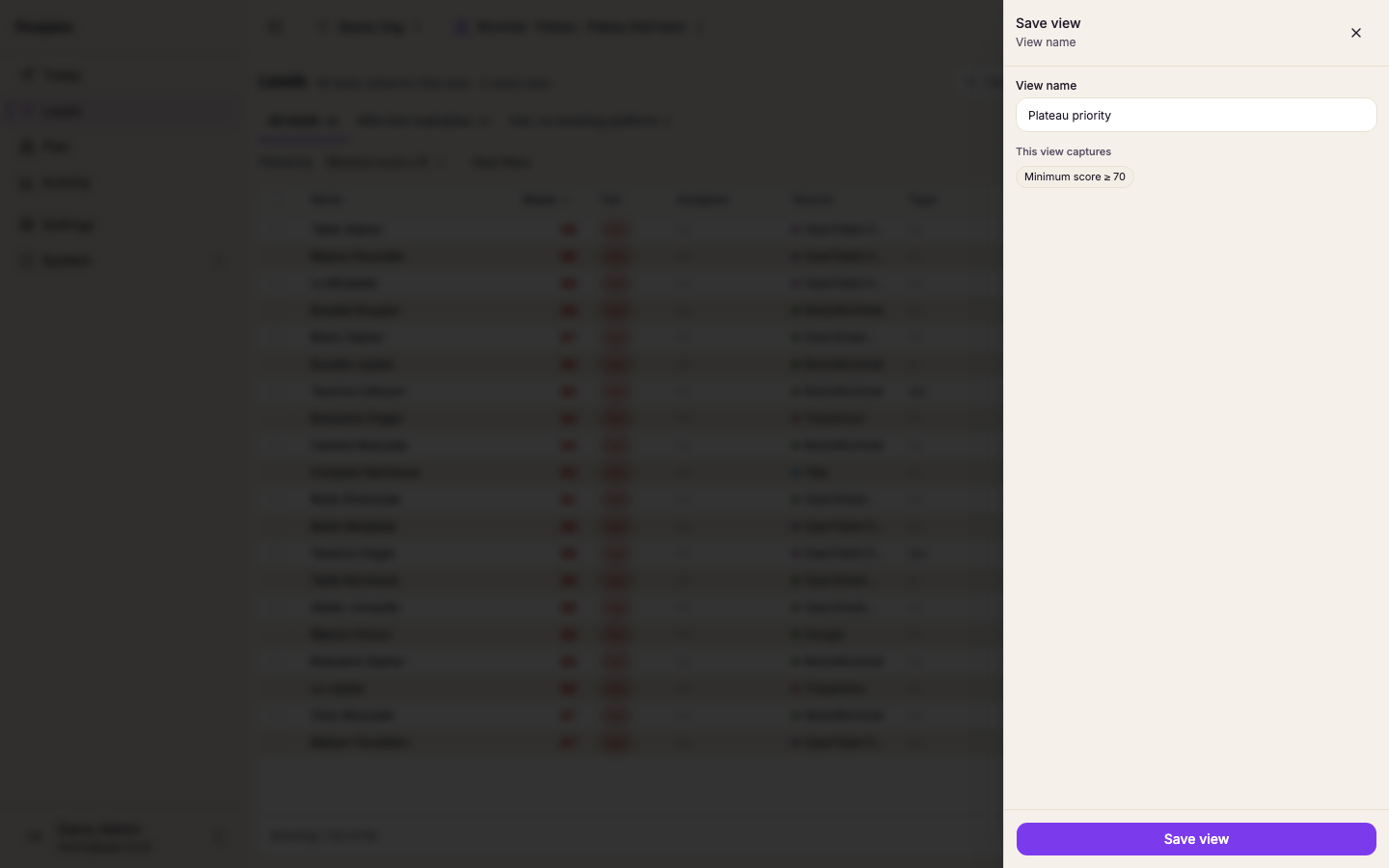
Select Save view in the dialog.
To change it later, choose the view in the view picker, adjust the filters, and select Save followed by the view name.
Keep a hand-picked list
You can also add individual leads to a saved view. This membership is separate from the filter definition. To start a hand-picked list from nothing, select Save view with no filters on, then add leads to it.
There are three places to do it:
- From a lead. Its detail ends with In views, a checklist of your saved views and the shared ones. The views that already hold the lead are checked and listed last. Check a view to add the lead, or clear it to take the lead out.
- From a table selection. Select leads, open More in the selection bar, then Add to saved view. Choose a view, or select New view from these leads to save a new view holding them, up to 500 at a time. Views that already hold every selected lead are checked and listed last.
- From a map pin. Select Add to saved view, then choose an existing view, or select Create a saved view with this lead. A view created this way starts with that lead and saves no filters, even when filters are on. The dialog names the filters it leaves out, because any of them could hide the lead the view was made for.
The view menu
The view you have open has a menu beside the view picker. It shows only what your role can do with that view.
- Rename changes the view's name.
- Plan a route from this view opens the planner with this view as its lead source.
- Copy link copies a link that opens the view. On a shared view, anyone in your organization can open it. On one of your views, only you can.
- Save as my view saves the screen as a new view of your own.
- Make a shared copy turns one of your views into a shared view. Owners and admins only.
- Move earlier and Move later move the view within its group: your views among your views, shared views among shared views.
- Delete removes the view.
A link to a view you cannot see opens All leads with "This view is not available".
On a phone
On a phone, the Filters sheet also offers Save as my view while the screen has changes you have not saved.