Use the lead table and map
Choose the best lead view and understand map layers, colors, and ignored filters.
The table is best for comparing details. The map is best for understanding location and density.
Change the view
Open Leads.
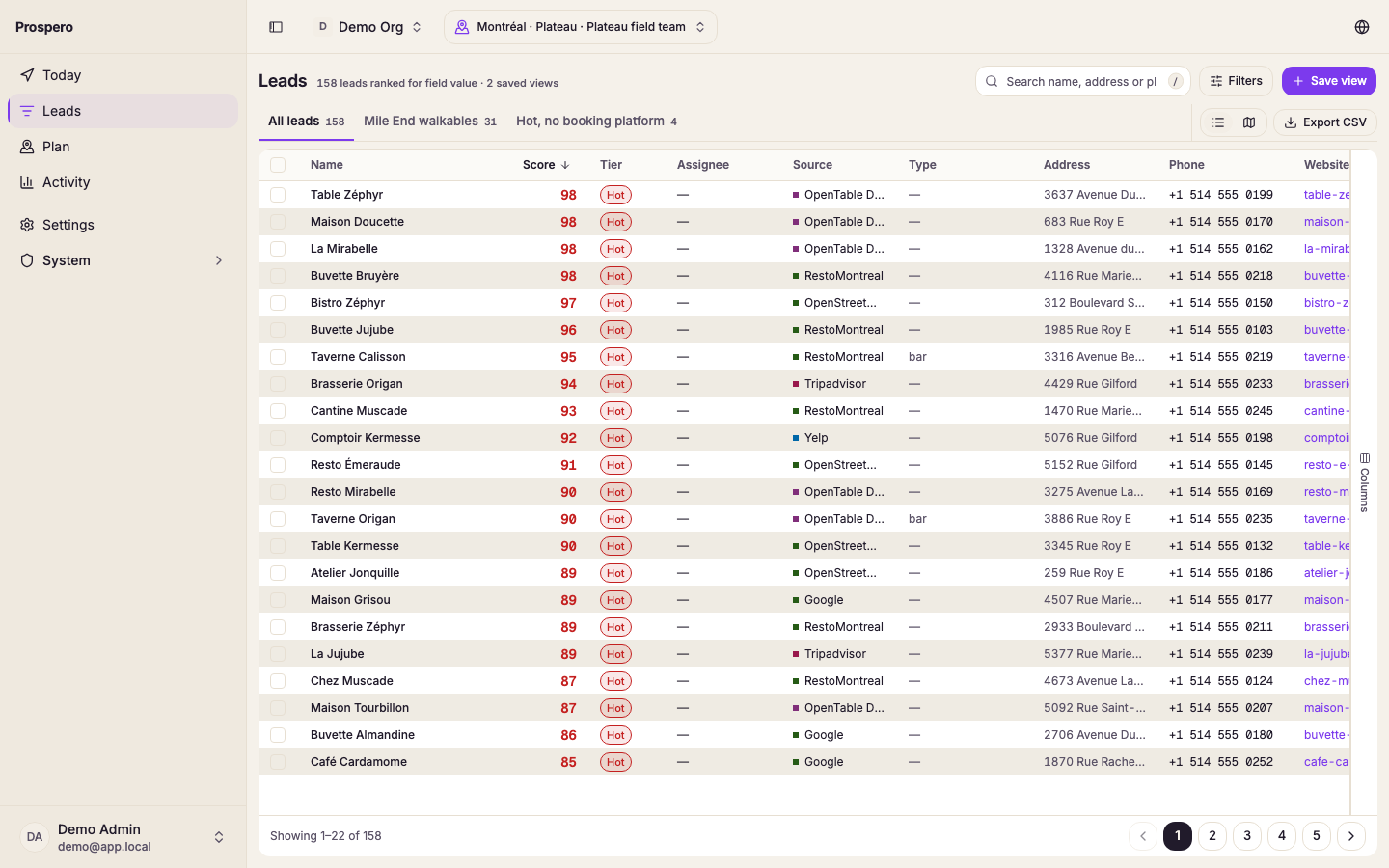
Select Table to compare lead columns. Each row starts with the lead's Score, then its name and its Tier, so the strongest leads stand out before you read anything else. Use Display to show more, such as Verification, or to hide the ones you do not need.
Select Map to see lead locations.
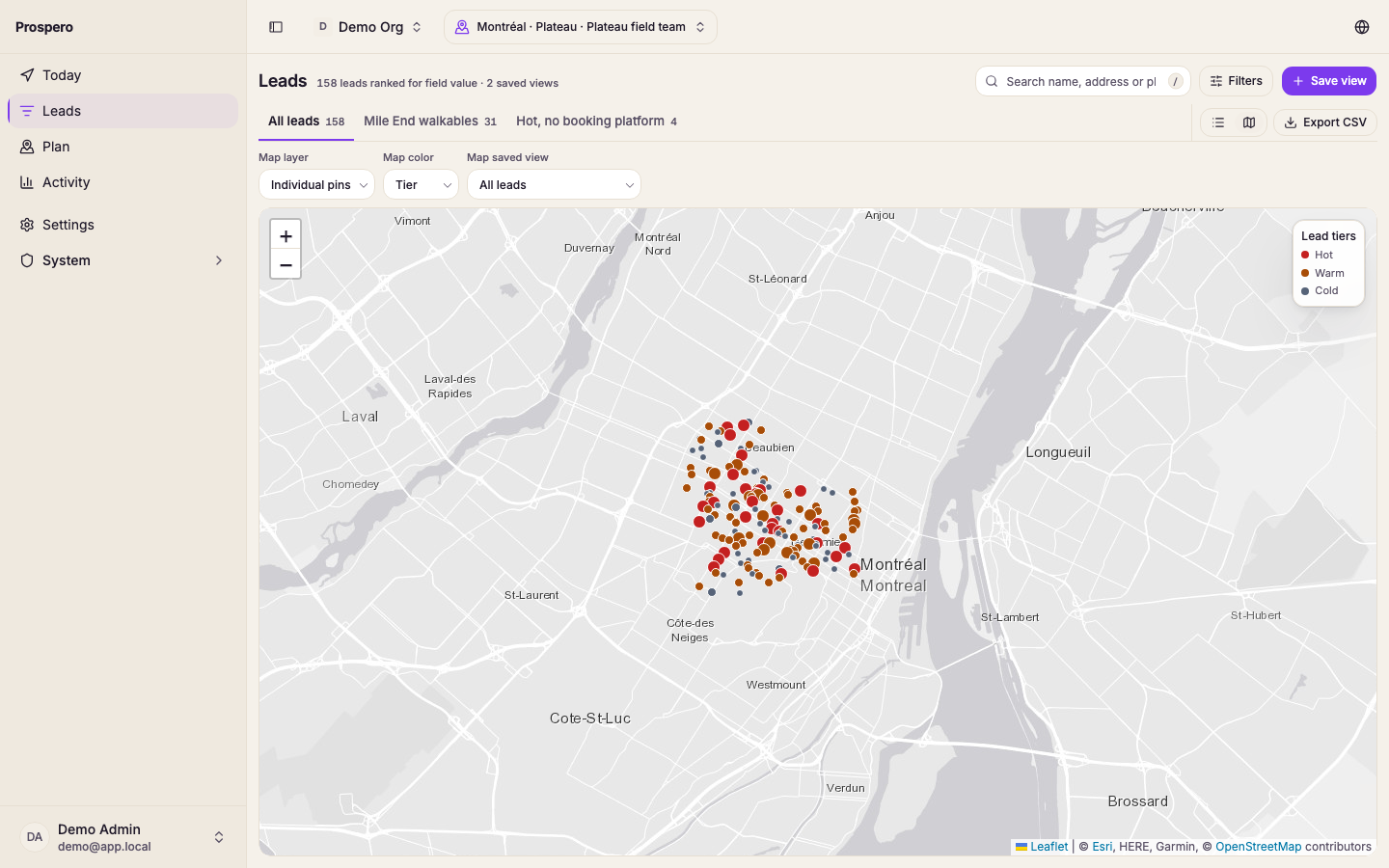
Under Map layer, choose Individual pins, Grouped pins, or Lead density.
Under Map color, choose Tier or Source.
Select a pin or group to inspect the leads in that area.
The map shows the leads in the view you have open. Choose All leads or a saved view in the view picker, and the pins change to match it.
The map applies source, tier, a single neighborhood and eligibility. When other filters or a search are active, Prospero names each one the map ignores. The table remains the exact filtered result, while the map may show additional leads.
Saving a view while the map is showing saves it as a map view, and it opens on the map next time. Switching between Table and Map counts as a change to the open view, so Save view updates it. Map layer and map color are remembered on your device and never change a saved view.
Use Open in Google Maps from a lead when you need external directions.
Group leads by tier
In Table, open Display and turn on Group by tier to split the leads into one section per tier, in each industry's tier order. Each section header shows the tier, how many leads it holds, and their average score. Leads with no tier come last, under Unscored.
- Select the arrow beside a tier to collapse or expand that section.
- Each section shows its first 20 leads. Select Show 20 more at the bottom of a section to load more of that tier only.
- Save the view to keep the grouping and the sections you collapsed. Opening the view brings them back.
Grouping is available on a computer. On a phone, the list stays ranked by score.
Table columns
The columns you can show depend on the industry of the leads. Open Display to show or hide them; a column that is mostly empty in the view says how empty. Each column header also has an options menu with Filter, Sort ascending, Sort descending, Move earlier, Move later and Hide. Filter opens that field's filter chip, and sorting from the menu sets the sort button.
Restaurant leads open with Score, Name, Tier, Assignee, Neighborhood, Last contact, Phone, Booking provider and Manager phone. Website, POS and the manager's name, email and title are in Display, off until you turn them on. Other industries find Last contact in Display too.
| Column | Industries |
|---|---|
| Verification | Every industry |
| Score | Every industry |
| Name | Every industry |
| Tier | Every industry |
| Stage | Every industry |
| Assignee | Every industry |
| Neighborhood | Restaurants |
| Last contact | Every industry |
| Source | Every industry |
| Type | Every industry |
| Address | Every industry |
| Phone | Every industry |
| Website | Every industry |
| Cuisine | Restaurants |
| Price level | Restaurants |
| Booking provider | Restaurants |
| POS | Restaurants |
| Online ordering | Restaurants |
| Event platform | Restaurants |
| Restaurants | |
| Rating | Every industry |
| Reviews | Every industry |
| Every industry | |
| Manager name | Every industry |
| Manager phone | Every industry |
| Manager email | Every industry |
| Manager title | Every industry |
| Manager confidence | Every industry |
| Star rating | Hotels |
| Room count | Hotels |
| PMS system | Hotels |
| OTA count | Hotels |
| Property type | Hotels |
| Chain | Hotels |
| Make brands | Automotive |
| Inventory size | Automotive |
| Dealer type | Automotive |
| DMS system | Automotive |
| CRM system | Automotive |
| Specialty | Healthcare |
| Provider count | Healthcare |
| EHR system | Healthcare |
| Online booking | Healthcare |
| Telehealth | Healthcare |