Connect Linear and link projects to reasons
Connect Linear, pick the teams to count, and link each project to the lost deals, churned customers and disqualified leads it should fix.
Once an owner or an admin connects Linear, the Roadmap lists your Linear projects and lets you link each one to the reasons it answers. The Roadmap then shows which reasons for lost deals, churn and disqualified leads have a project working on them, and which have none.
Connect Linear
In Linear, create a personal API key under Settings, Account, Security and access. Use a key from a member who can see the teams you want to count.
In Prospero, open Settings, then select Linear under Integrations.
Paste the key into API key, then select Connect. Prospero checks the key and stores it encrypted. It never shows the key again.
Under Linear teams, tick each team to count, then select Save Linear teams. The count beside the list reads, for example, 2 selected.
Select Sync now. The card shows Connected, the workspace, the masked key and the time of the last sync.
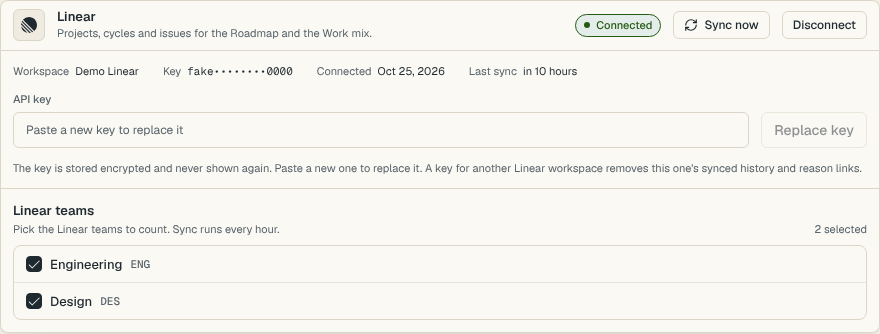
After this, Prospero syncs every hour. Until you pick a team the card reads Pick Linear teams, and until the first sync it reads Not synced yet.
To use a key from another Linear workspace, paste it under Replace key. That removes the first workspace's synced history and its reason links. Disconnect removes the key and everything synced from Linear. The Roadmap stays empty until you connect again.
Read the Roadmap
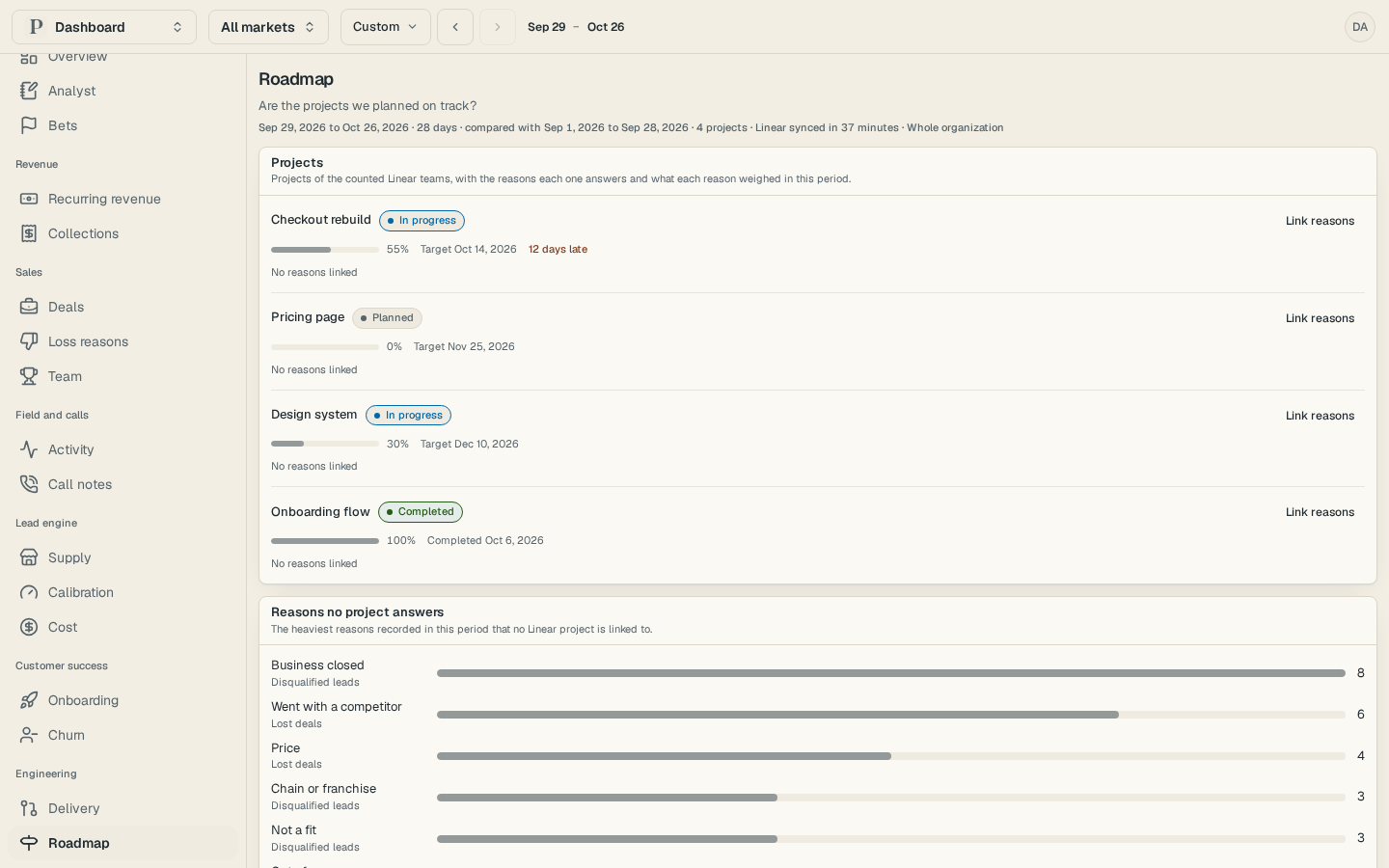
Open Dashboard, then select Roadmap under Engineering in the list of views. On a phone, select the group's name at the top, choose Engineering, then Roadmap.
Under Projects, each row is a Linear project with its state, such as In progress or Completed, its progress, its target date and how many days late it is.
Under Reasons no project answers, read the heaviest reasons recorded in the period that no project is linked to.
Below those, Issues completed and Cycle completion show the Linear work your teams finished.
Link a project to reasons
An owner or admin links projects. Everyone else sees the links.
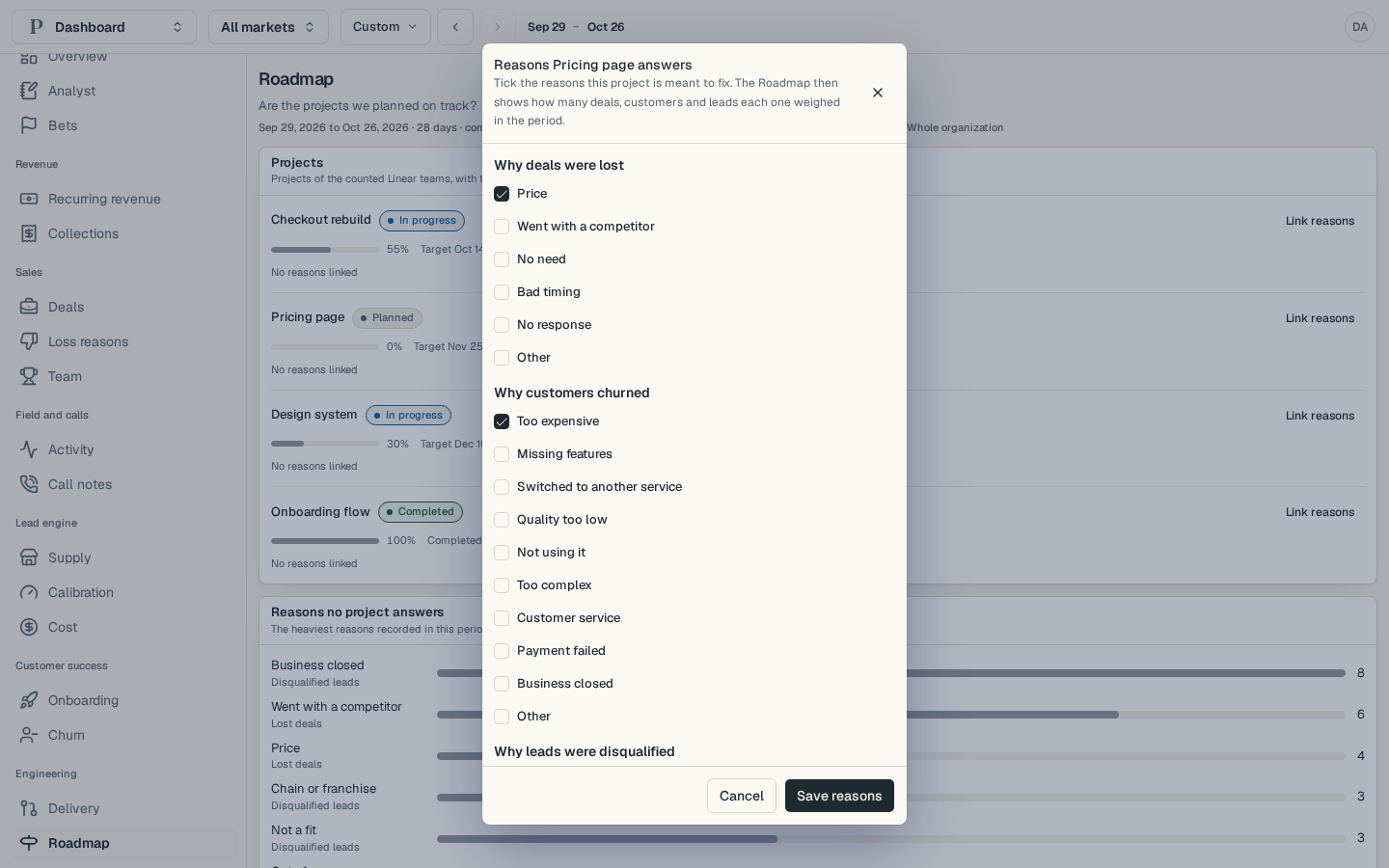
Select Link reasons at the end of the project's row. A window opens that lists the reasons in three groups.
Tick the reasons the project is meant to fix, under Why deals were lost, Why customers churned and Why leads were disqualified. A project can answer reasons from all three.
Select Save reasons. Reasons saved appears.
The project's row now lists those reasons, with how many deals, customers or leads each weighed in the period. The button on the row reads Edit reasons.
When the heaviest reason in the period has no linked project, a finding on Overview says so, for example No project answers Went with a competitor, which accounts for 6 lost deals. It appears from three occurrences and moves up to Check from six.