Record why a deal was lost
Say why a deal was lost when you move it to Lost, then read the reasons and the competitors named on the Loss reasons view.
When a deal falls through, Prospero asks why. The answer is kept with the deal and counted on the Loss reasons view, so a manager can see whether deals are lost on price, to a competitor, or for a reason nobody can fix. Recording it takes about half a minute.
Move the deal to Lost
Open the lead in Leads. The deal stage sits beside the lead's name, for example Proposal.
Select the deal stage, then choose Lost. A window opens that asks why the deal was lost.
Under Lost reason, pick the one that fits: Price, Went with a competitor, No need, Bad timing, No response or Other. Move stays dimmed until you pick one.
If the venue chose someone else, type the name under Competitor they chose (optional). Spell the name the same way each time. Capital letters do not matter, but Seatwise and Seat wise count as two competitors.
Add what the venue said under Note (optional), then select Move. The lead's stage changes to Lost.
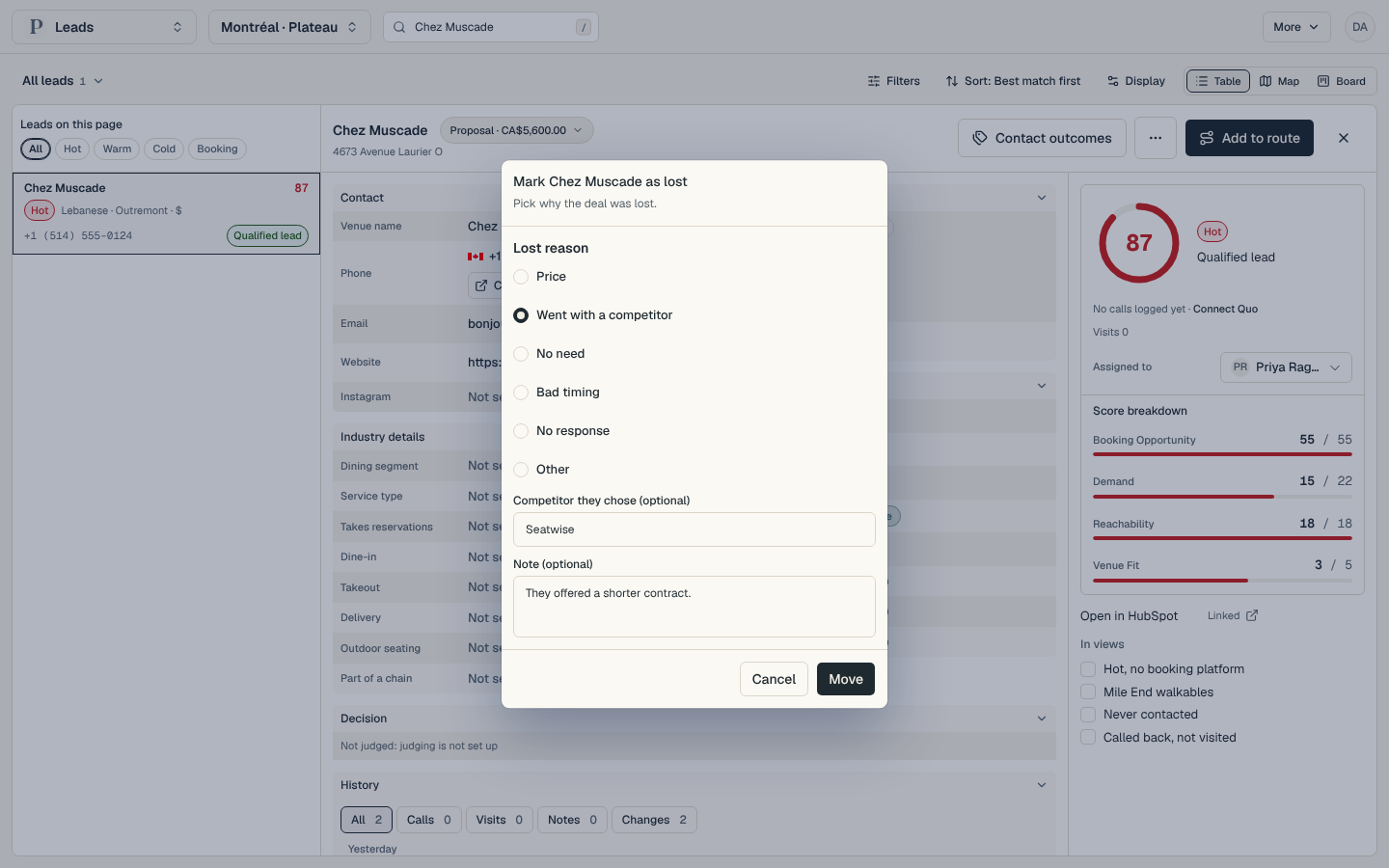
The reasons on the list belong to the industry. An admin edits them in Settings, Playbook, under Lost reasons.
Read the reasons
Open Dashboard, then select Loss reasons under Sales in the list of views. On a phone, select the group's name at the top, choose Sales, then Loss reasons.
Lost counts the deals lost in the period and Win rate shows won deals over won and lost ones, each against the period before.
Why deals were lost lists each reason with a count. The line under a reason names the stage those deals had reached, such as Proposal 6, for six deals lost after they reached the proposal stage.
Competitors named counts the names reps typed. Latest losses lists the newest deals with the rep, the reason, the competitor and the note.
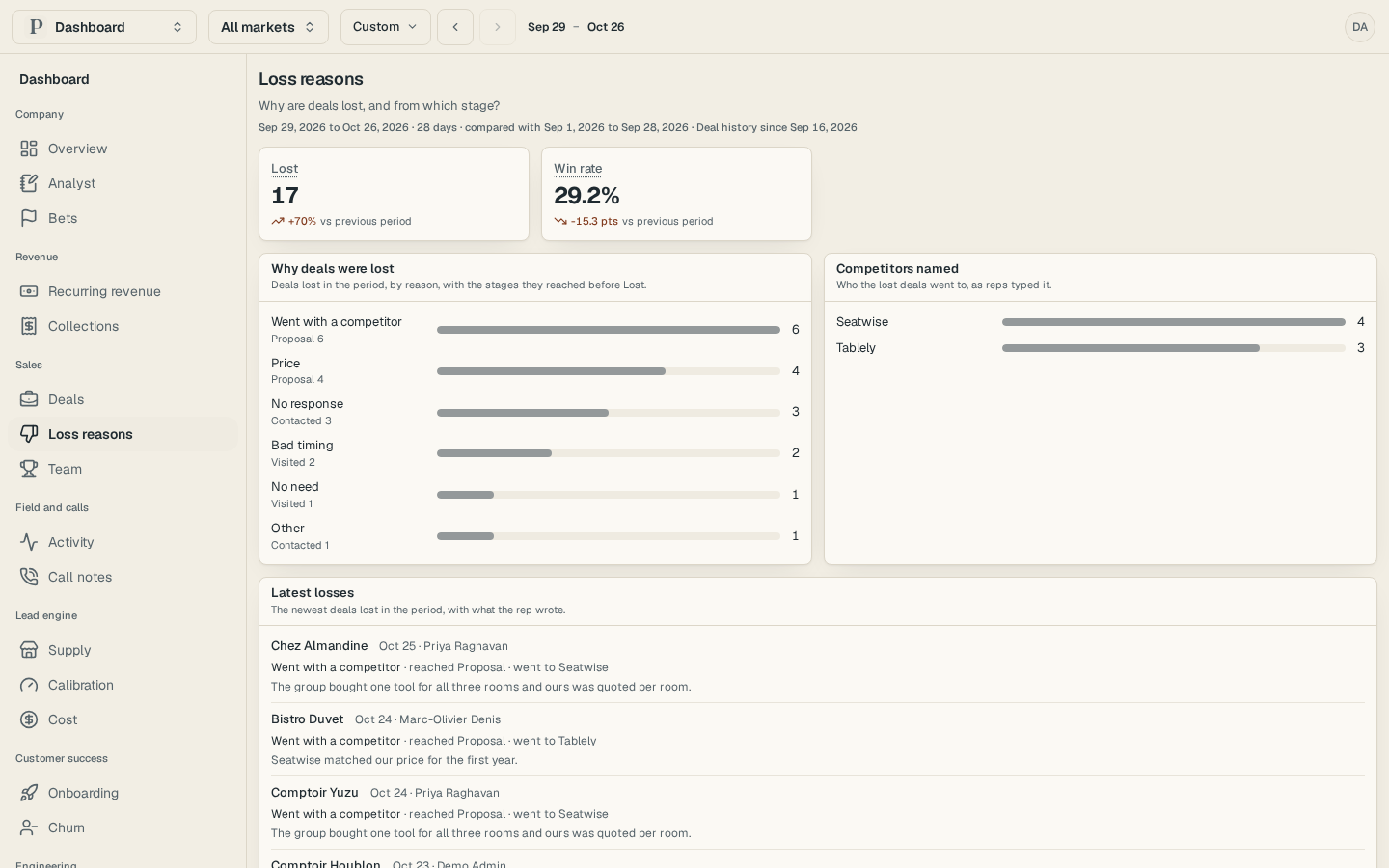
A salesperson sees their own deals. Owners and admins see the team's. When one reason is lost three or more times and at least twice as often as the period before, it also appears among the findings on Overview with a link back here.
To plan work against a reason, see Connect Linear and link projects to reasons.