Read the company dashboard
Find a view by its group, set the market and the period, and follow a finding to the leads or customers behind it.
The Dashboard answers how the company is doing and why. Each view answers one question, from revenue to lost deals to what discovery costs. This page shows how to find a view, set what it counts, and follow a finding to the records behind it. The screenshots show a demo organization with invented venues and a four-week range picked with Custom.
Find a view
Open Dashboard. It opens on Overview: the numbers that matter this period, every finding grouped by what to do about it, and a chart of ARR over the last twelve months.
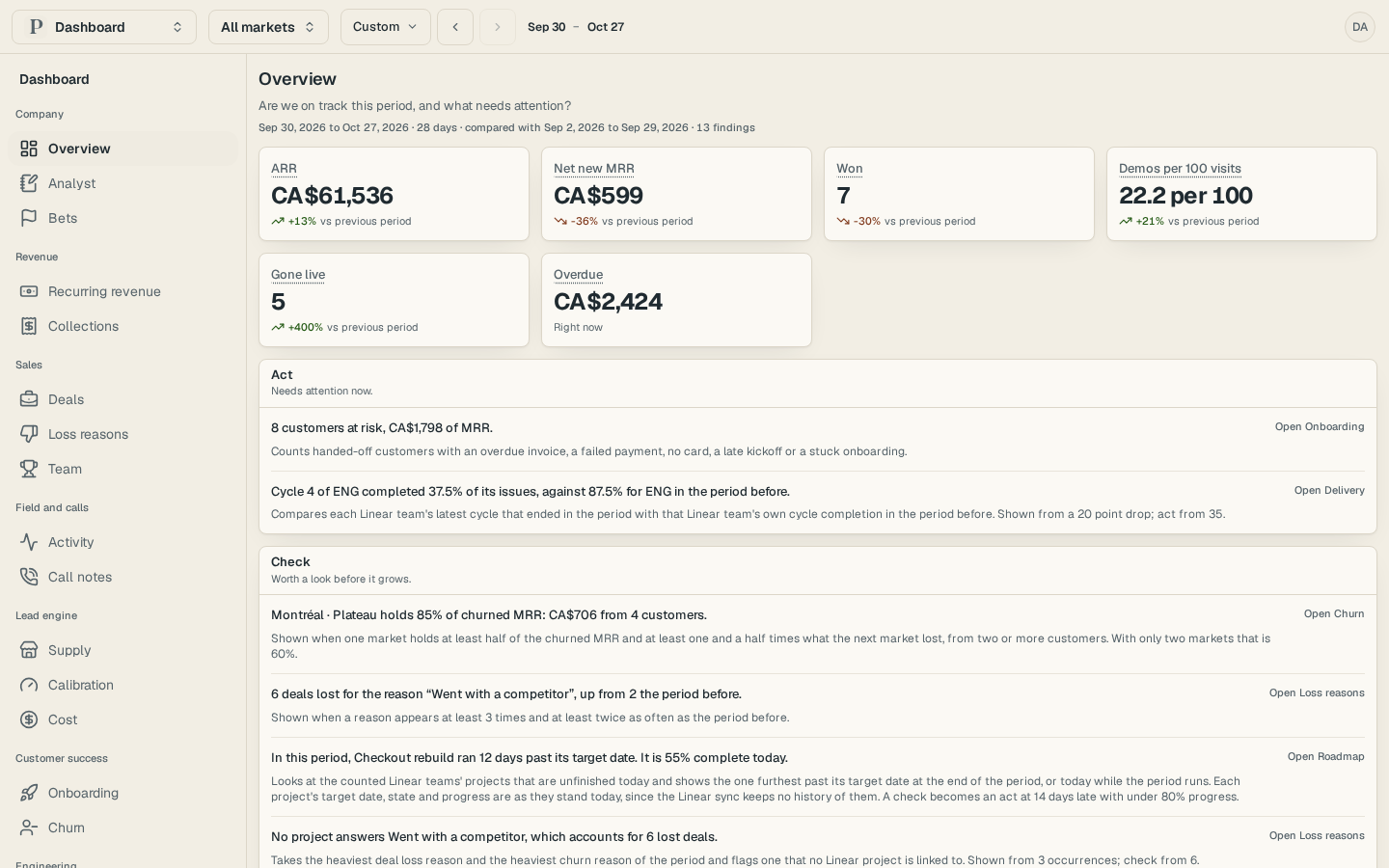
Pick a view from the list on the left. The views sit in groups, and a group shows only the views your role can open. On a phone, select the group's name at the top, choose the group, then the view.
Pick the market at the top: All markets, a group of markets, or one market. With one market picked, Team adds that market's week, rep by rep, under the ranking.
Choose the period from the menu at the top, or pick Custom and set From and To. The arrows beside the dates move a whole period at a time. The line under the title names the dates and the period before them, and every number shows how it changed against that earlier period. Team compares nothing, so its line names the dates alone.
Select a number's name to see how it is counted.
The Dashboard opens on this month to date. The period you pick is kept while you move between views, and it resets when you reload the page.
| Group | Views |
|---|---|
| Company | Overview, Analyst, Bets |
| Revenue | Recurring revenue, Collections |
| Sales | Deals, Loss reasons, Team |
| Field and calls | Activity, Call notes |
| Lead engine | Supply, Calibration, Cost |
| Customer success | Onboarding, Churn |
| Engineering | Delivery, Roadmap |
Recurring revenue holds the revenue numbers, where monthly revenue moved, and how much of it stays. Deals shows every stage of your playbook. Supply ends with why leads were disqualified, Onboarding with the customers who need a call, and Delivery with the kind of work your team ships.
A view that needs a connection says so. Recurring revenue and Collections need your contracts connected, Delivery needs GitHub or Linear, and Roadmap needs Linear. An owner or admin sees a link to the right page in Settings.
Follow a finding
A finding is a rule the Dashboard checks for you, such as net new MRR falling or one reason for lost deals doubling. Every finding for the period is on Overview.
Read the group a finding sits in. Act needs attention now. Check is worth a look before it grows. Watch is a trend to keep an eye on.
Read the line under the finding. It says when the rule shows the finding, so you know what made it appear.
Select the link on the right, such as Open Revenue, to go to the view the finding comes from.
When a finding names leads or customers, they are listed after Behind it:. Select one to open it.
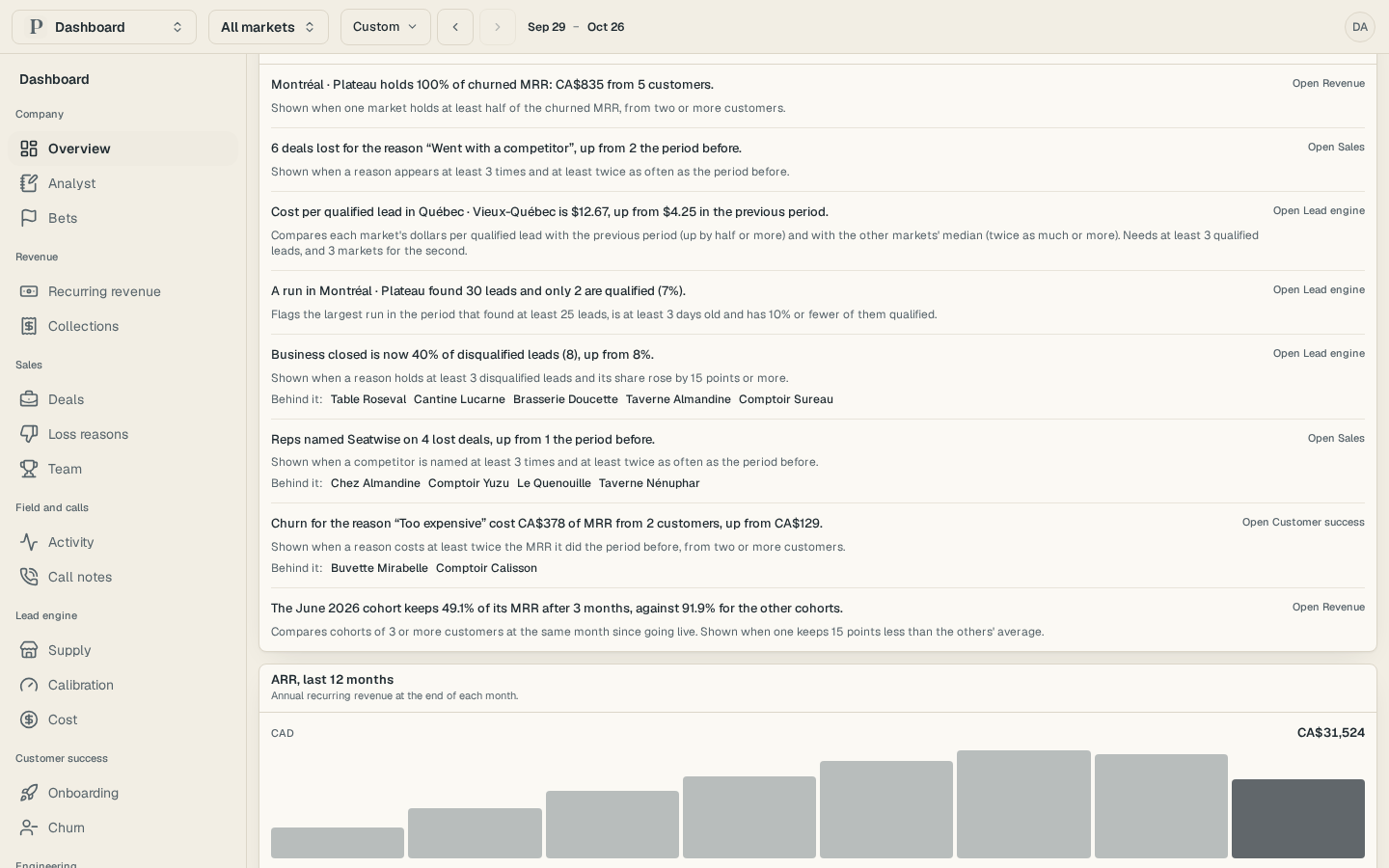
Several findings point at the views that hold the reasons: Record why a deal was lost, Record why a lead was disqualified and Record why a customer churned.
What each role sees
Owners and admins open every view in full. Salespeople see Sales, Field and calls and Lead engine for their own work, plus Overview, Analyst and Bets. Customer success sees retention and collections, its own customers, Overview, Analyst and Bets. Everything else stays hidden.
Team and Churn draw from two groups, and each shows you only the parts your role opens. Team shows the ranking to anyone who sees Sales or Field and calls, and the market's week to those who see Sales. On Churn, a customer success person picks between Your own book and Every customer.
To open a page in full for one person, an owner or admin opens that person in Settings, Members and uses Dashboard pages.